Learn Bulgarian online with Bulgaro
A fun, modern and interactive Bulgarian language course.

A fun, modern and interactive Bulgarian language course.
Follow these steps to install a Bulgarian keyboard on Windows 11.
You do not need a physical Bulgarian keyboard, this works on any keyboard such as a standard QWERTY keyboard.
You will be able to easily switch back and forth between this and your current keyboard.
We will install a phonetic Bulgarian keyboard, which maps Bulgarian letters to the sounds of English letters. With this keyboard active, you will get a Bulgarian "Д" when you press the English letter key "D" on your regular keyboard.
You can also use a virtual Bulgarian keyboard on screen (see below).
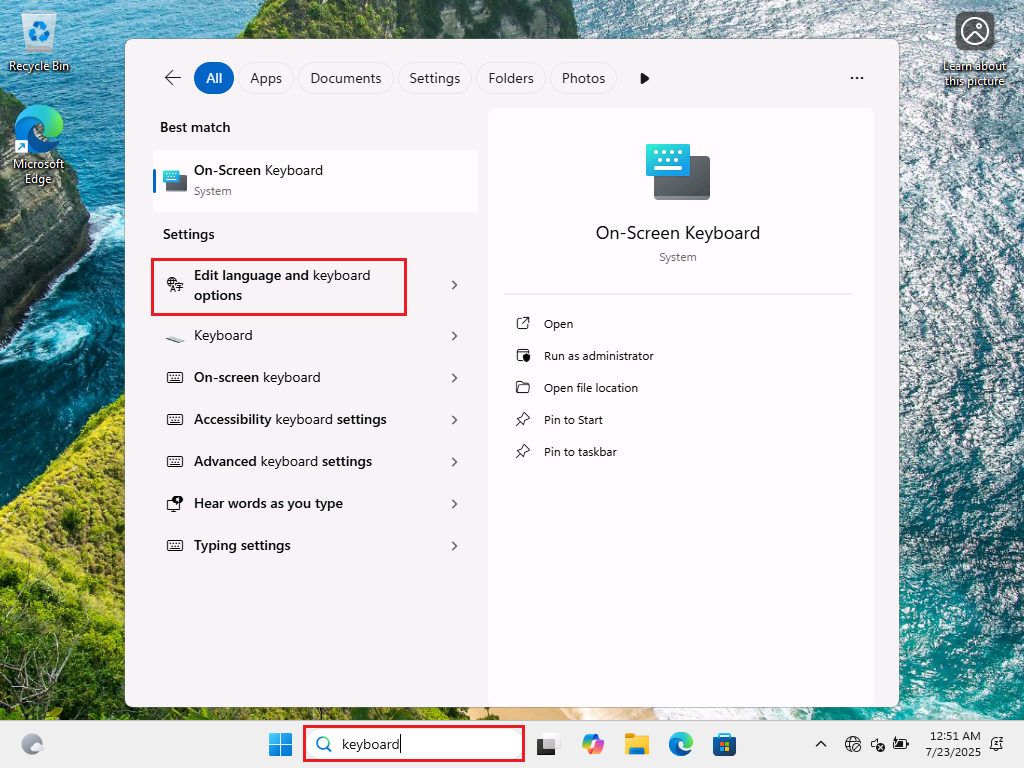
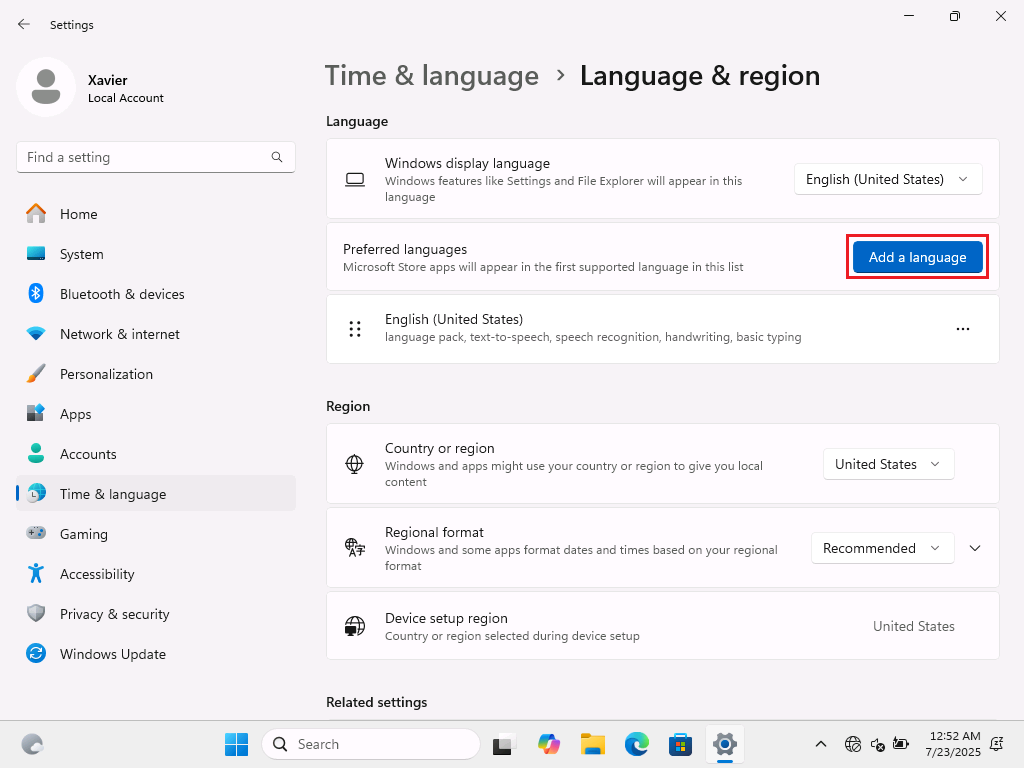
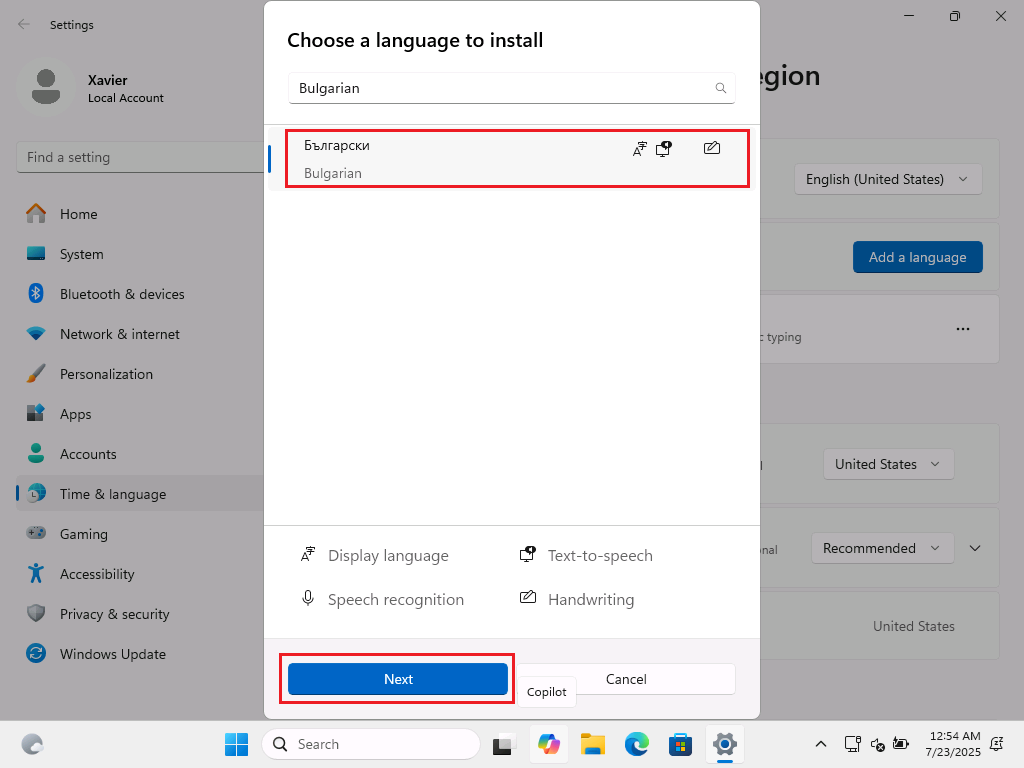
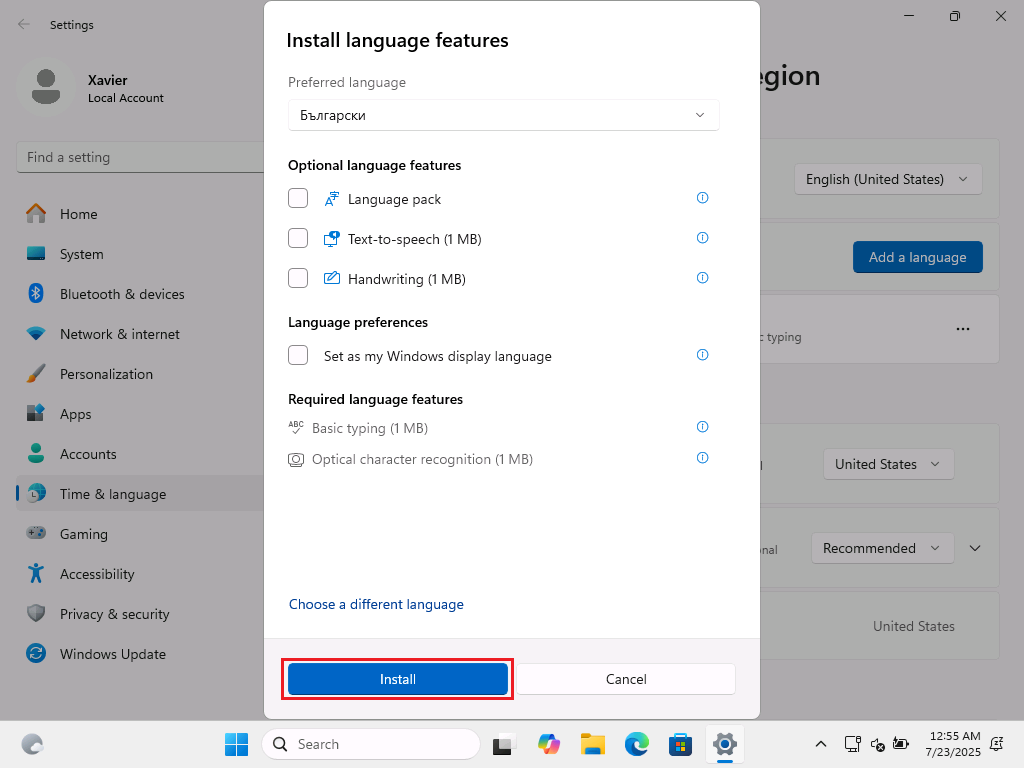
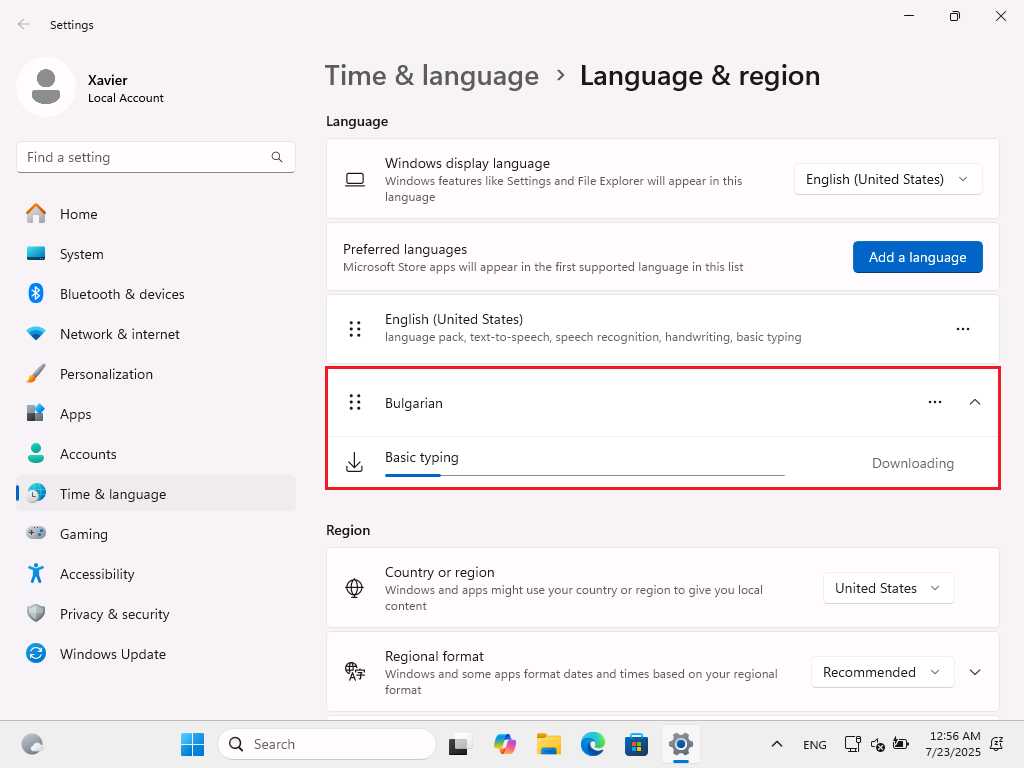
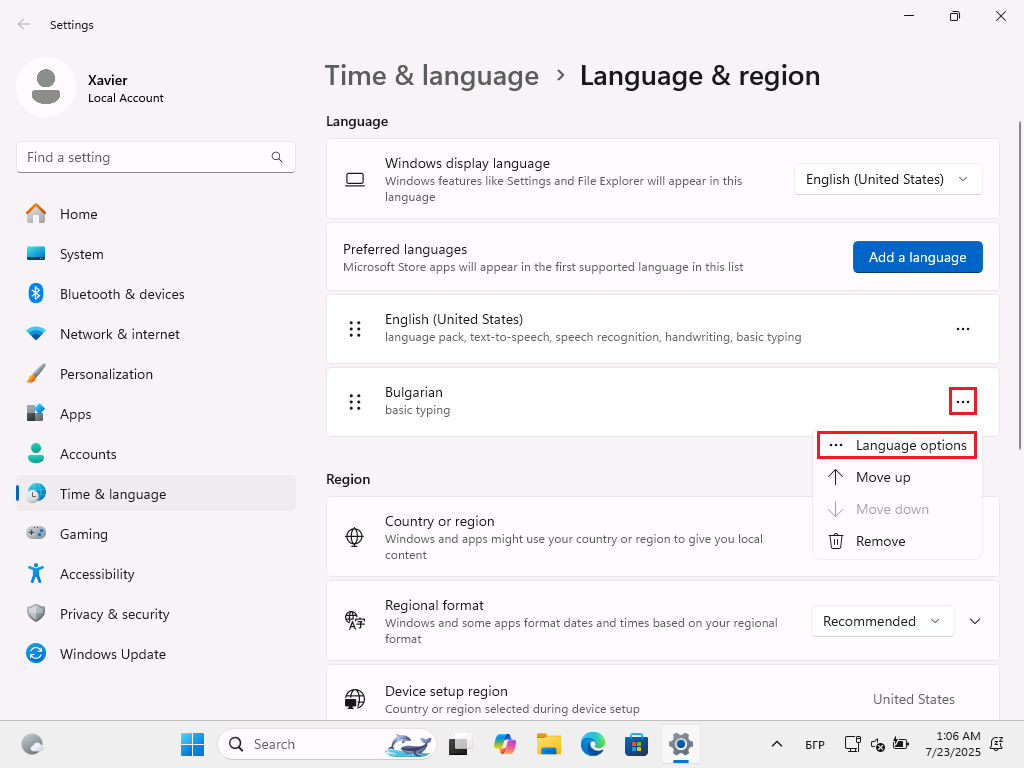

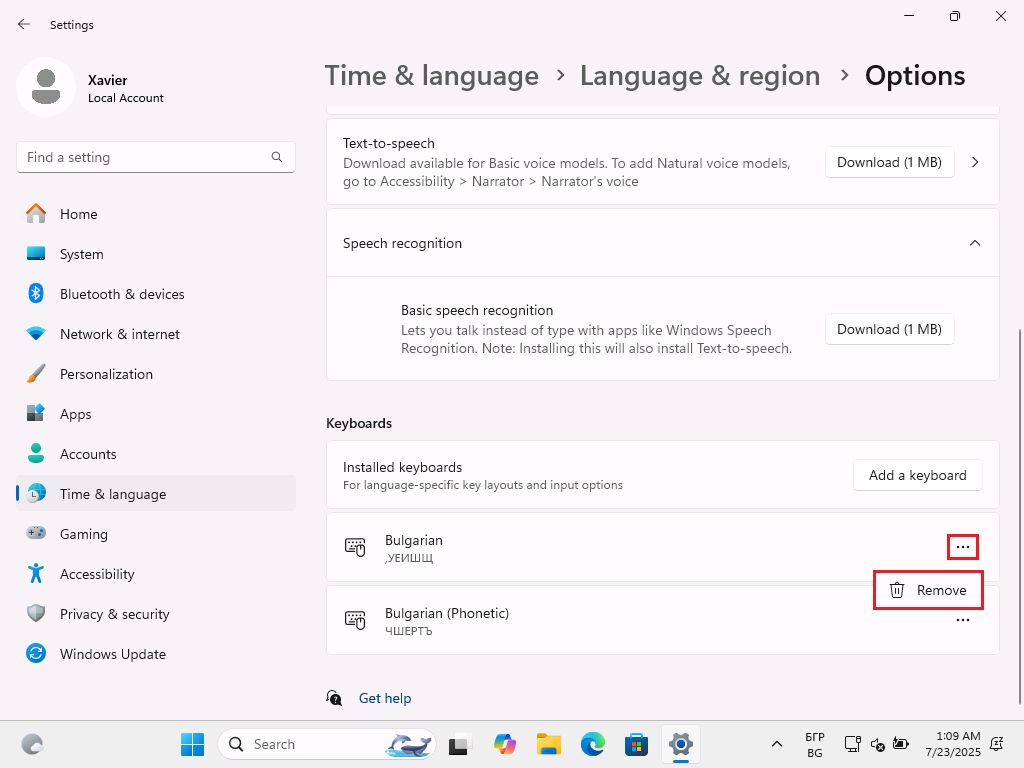
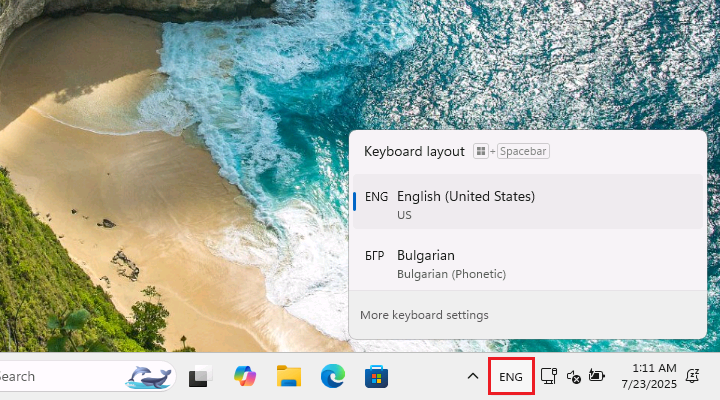
9. Your Bulgarian keyboard is now installed. From now on, you will see in your taskbar, in the bottom right corner of the screen, a button that lets you switch between the English and Bulgarian keyboards.
This button will display ENG when the English keyboard is active, and БГР when the Bulgarian keyboard is active.
You can also switch keyboards by pressing Alt + Shift or Windows Key + Spacebar.
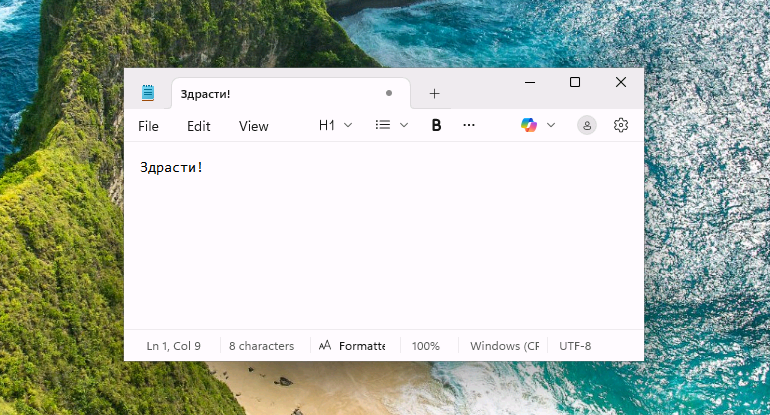
You might find it a bit difficult to navigate your new keyboard at first. Don't worry, you will quickly get the hang of it.
If you'd like, you can also show an on-screen keyboard so that you can visually click the keys to type text in Bulgarian.

To display this keyboard, you have to first have followed the steps above, then you can open the Start Menu, search for "on-screen keyboard" and open the search result.
A fun, modern and interactive Bulgarian language course.
See the guides to install a Bulgarian Cyrillic keyboard on other platforms.